PHOTO → MEASURED PRINT
A drawing, a pattern, a paper template. Bring it from your camera back to paper at its original size.
A physical reference.
A perspective-corrected image.
A PDF with real dimensions.
FIRST SCAN? START HERE.
What do you have ready?
No account or installation. Choose how to set the real-world size.
1. Prepare your tiles
- Print the tile sheet at Actual size / 100%.
- Cut out the 60 mm tiles. Check the black squares measure 45 mm; adjust different measurements in Scan settings.
- Place two or more different tiles beside the drawing, all faces level. Keep their white borders visible.
1. Prepare your QR marker
- Use the Shukushaku marker that opened this page, or print the pocket marker at 100%.
- The pocket marker has a 45 mm black symbol inside a 60 mm tile. The original SF60 symbol is 60 mm. Check the measurement in Scan settings.
- Place it beside the drawing, with both printed faces level. Keep the whole marker and its white border in view.
1. Tell us the actual document size
Choose the size of the whole sheet, not the artwork inside it. No printed marker is needed.
Use portrait orientation for A4 or Letter. You can swap width and height in Scan settings.
Next: Take a photo → check the orange corners → download a PDF. Print at 100% and verify a known measurement.
No printer or markers? Try the sample, or choose a known document size above.
Optional: calibrate this camera for better lens correction
Set up camera calibration → · You’ll need the printed calibration board and 15–25 views. Profiles stay in this browser; another device needs its own profile.
Photos stay on your device by default. Your browser may download the image tools on first use; that can take a moment.
Start with a well-framed photo
Place the calibration marker beside your drawing,
on the same flat surface. Keep both fully in view.
Camera access requires your permission. JPG & PNG recommended.
Hold the full document and reference markers steady for about 2 seconds. ArUco auto capture needs at least two tiles. Known-size mode needs only the document. You can always take the photo manually.
Looking for a Shukushaku marker…
Live corrected preview
On-device framing preview. Final calibration uses the captured photo, not this reduced-resolution view.
Reading your marker…
Drag the orange handles. For keyboard adjustment, focus the photo and use arrow keys (Shift for larger steps). Corners must follow the paper boundary, not the artwork.
A LITTLE GEOMETRY. A LOT LESS GUESSWORK.
From your desk
to your printer.
- 01
Place the reference
Place the tiles around a flat drawing, with every marker face level with it. Keep the full black squares and white borders visible.
- 02
Capture & straighten
The known marker sizes establish scale. Your browser checks the tiles together and corrects perspective across their shared plane.
- 03
Crop & print at 100%
Select the drawing and export a PDF with physical page dimensions. Tile larger patterns onto ordinary paper.
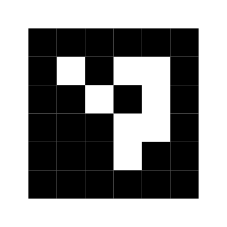 60 mm outside · 45 mm reference
FOUR TILES. ONE FLAT PLANE.
Place your references around the drawing.
Use unique IDs 0–3 from this kit. The browser fits the known square sizes together while estimating their loose layout. It checks disagreement; it does not assume fixed spacing.
Print at 100%, measure each black square, and keep every marker face level with the drawing. A calibration board must stay rigid and flat. Camera calibration reduces lens distortion; it cannot flatten curled paper.
Set up camera calibration → ← 60 mm tile →
ONE MARKER. TWO JOBS.
Your shortcut.
Your measuring reference.
Scan it to open this site. Include it in your photo to establish scale. The Pocket 60 has a 45 mm QR symbol and a 60 mm tile with a generous white border.

Print PDF at 100%, then check the 45 mm symbol with a ruler. For 3D printing: use a matte white base and black modules, with no scaling in the slicer. The kit includes separate base and module STLs plus an OpenSCAD source.
Accuracy & 3D-marker placement
No single marker size is best for every photo. This 60 mm tile is sized to carry with a phone. The original 80 mm SF60 marker is still recognized automatically. Keep the symbol at least 200 pixels across in the photo when possible.
The paper marker is the most accurate starting point because it lies close to the drawing plane. The supplied 3D marker is 0.8 mm thick. Recess it or raise the drawing so its surface is level with the marker’s top. An elevated marker causes a scale error.
Perspective correction assumes one flat plane. It cannot flatten curled paper, recover hidden details, or reliably remove lens distortion from one QR code. Keep the camera close to perpendicular, use the main 1× camera, and check a known length. This is a practical reproduction tool, not a certified measuring instrument.